Elevate Your Apple Watch Experience: Unlocking Hidden Potential in 2025
Apple’s smartwatch ecosystem continues its impressive evolution, with each passing year bringing more sophisticated features and seamless integration into daily life. The 2025 lineup is no exception, featuring the highly anticipated Apple Watch Series 11, the versatile Apple Watch SE 3, and the rugged Apple Watch Ultra 3. Whether you’ve just unboxed one of these cutting-edge devices or are looking to revitalize your existing Apple Watch, there’s a wealth of untapped potential waiting to be discovered. Beyond the obvious health tracking and notification management, these devices offer a suite of functionalities that can significantly enhance your productivity, well-being, and overall user experience.
This guide delves into eight essential tips and tricks designed to help you master your Apple Watch, transforming it from a simple accessory into an indispensable personal assistant. From optimizing battery life to leveraging advanced health sensors, these insights will ensure you’re getting the most out of your investment in Apple’s wearable technology.
Mastering Your Wearable: Practical Tips for Apple Watch Owners
Getting the most out of your Apple Watch often comes down to knowing the subtle settings and less-obvious features that can make a big difference. These tips are curated to provide immediate value, improving everything from daily convenience to long-term device performance.
1. Optimize Battery Life for Extended Use
While the latest Apple Watch models boast improved battery efficiency, strategic adjustments can significantly extend their runtime. One of the most impactful changes is managing the Always-On Display. While convenient, it consumes considerable power. Navigate to Settings > Display & Brightness > Always On and toggle it off, or configure it to only show time for a more balanced approach. Additionally, review Background App Refresh (Settings > General > Background App Refresh) and disable it for apps you don’t need constantly updated on your wrist. This prevents apps from silently draining power.
2. Customize Watch Faces for Instant Information
Your watch face is your primary interface, and customizing it effectively can save you precious seconds throughout the day. Instead of just aesthetics, think about complications – the small widgets that display information. For example, a workout complication provides one-tap access to your fitness app, while a weather complication gives immediate forecasts. Experiment with different faces and complication layouts (long-press on watch face > Edit) to create context-specific setups, such as a work face with calendar and messages, and a fitness face with activity rings and heart rate.
3. Leverage Advanced Health Tracking Features
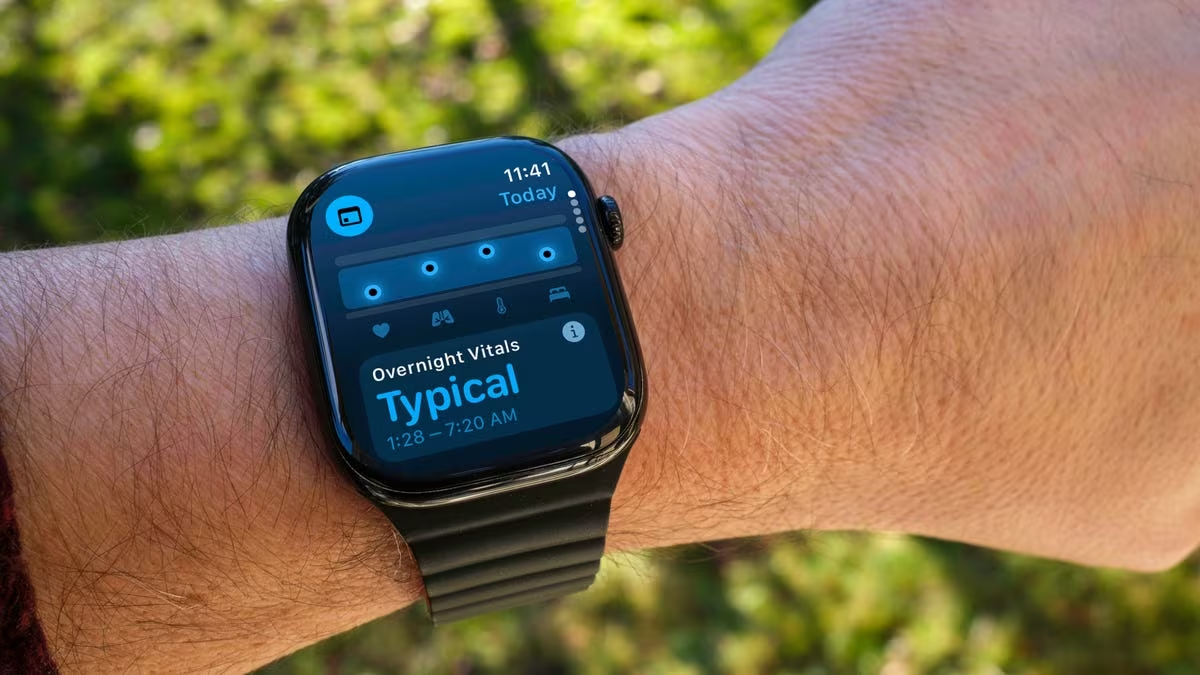
The Apple Watch Series 11 and Ultra 3 are powerful health companions. Don’t just track steps; delve into features like ECG readings, blood oxygen monitoring, and sleep tracking. Ensure these are set up correctly in the Health app on your iPhone. For ECG, make sure your region supports it and follow the instructions carefully. For sleep tracking, wear your watch to bed and review the detailed sleep stages and trends in the Health app to gain insights into your rest patterns. These features provide valuable data for proactive health management.
4. Streamline Communication with Smart Replies and Siri
Responding to messages from your wrist can be incredibly efficient. Beyond dictation, utilize Smart Replies, which learn from your common responses and offer contextual suggestions. You can also customize your own default replies in the Apple Watch app on your iPhone (My Watch > Messages > Default Replies). For hands-free interaction, Siri is your best friend. Raise your wrist and speak, or enable Hey Siri to set timers, send messages, or get quick information without touching your watch.
5. Enhance Workout Tracking and Motivation
For fitness enthusiasts, the Apple Watch is a game-changer. Beyond starting a basic workout, explore customizing workout metrics for each activity (Workout app > tap ‘…’ on a workout type > Edit Metrics). This allows you to see exactly what’s most important to you during a run or swim. Utilize Fitness+ for guided workouts directly on your watch, and pay attention to Activity Trends in the Fitness app on your iPhone, which can help you identify patterns and stay motivated towards your goals.
6. Master the Digital Crown and Side Button
The Digital Crown and Side Button are more than just navigation tools; they offer quick shortcuts. A single press of the Digital Crown returns you to the watch face, while a double-press switches between your two most recently used apps. Pressing and holding the Digital Crown activates Siri. The Side Button, on the other hand, brings up the Dock (your favorite and recent apps) with a single press, and a double-press activates Apple Pay. Learning these shortcuts can significantly speed up your interactions.
7. Utilize Haptic Feedback for Discreet Alerts
The Apple Watch’s haptic engine provides subtle, discreet notifications that are often more effective than audible alerts, especially in public or quiet environments. Adjust the Haptic Strength (Settings > Sounds & Haptics) to your preference. Explore Prominent Haptic for a more noticeable tap. Additionally, many apps offer custom haptic patterns for different types of alerts, allowing you to distinguish between messages, calls, and other notifications without looking at your wrist.
8. Find Your iPhone with a Tap
Misplacing your iPhone is a common occurrence, but your Apple Watch offers a quick solution. Simply swipe up from the watch face to access Control Center, then tap the iPhone ping icon (the phone with sound waves). Your iPhone will emit a ping, even if it’s on silent, helping you locate it quickly. If you long-press the icon, your iPhone’s flashlight will also flash, making it easier to find in the dark.
Key Takeaways
- Battery Management: Fine-tune Always-On Display and Background App Refresh for longer battery life.
- Personalized Watch Faces: Customize complications to get critical information at a glance.
- Health Insights: Actively use ECG, blood oxygen, and sleep tracking for a comprehensive health overview.
- Efficient Communication: Leverage Smart Replies and Siri for quick, hands-free interactions.
- Workout Optimization: Tailor workout metrics and use Fitness+ to enhance your fitness journey.
- Master Navigation: Learn Digital Crown and Side Button shortcuts for faster app access and functions.
- Discreet Alerts: Adjust haptic feedback for effective, unobtrusive notifications.
- Locate iPhone: Use the Control Center ping feature to quickly find your misplaced iPhone.
What’s Next for Your Apple Watch Experience
As Apple continues to innovate, the capabilities of the Apple Watch are only set to expand. Future software updates (watchOS) will undoubtedly introduce new features, refine existing ones, and potentially unlock new hardware functionalities of the Series 11, SE 3, and Ultra 3. Staying updated with the latest watchOS versions is crucial to accessing these advancements. Furthermore, Apple’s ongoing commitment to health and wellness suggests even more sophisticated sensors and analytical tools may be on the horizon, further cementing the Apple Watch’s role as a leading personal health and productivity device. Continue exploring the Apple Watch app on your iPhone and the device’s settings to discover new ways to integrate it seamlessly into your life.
Original author: See full bio
Originally published: October 20, 2025
Editorial note: Our team reviewed and enhanced this coverage with AI-assisted tools and human editing to add helpful context while preserving verified facts and quotations from the original source.
We encourage you to consult the publisher above for the complete report and to reach out if you spot inaccuracies or compliance concerns.